Twitch Panel Maker
Five matching panels for the questions every viewer asks.
Panels sit under your stream and answer the questions chat asks over and over: who you are, when you stream, where your Discord is and how to support you. Matching panels make a channel look finished and help viewers find what they need without asking.
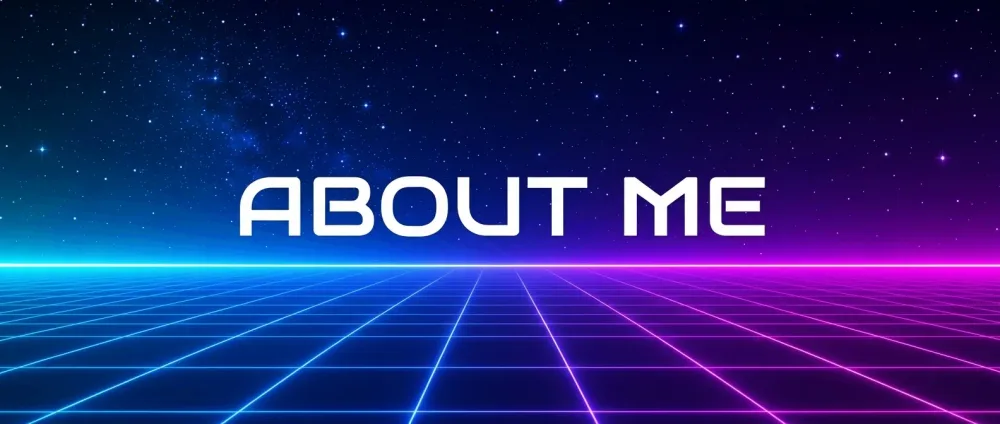
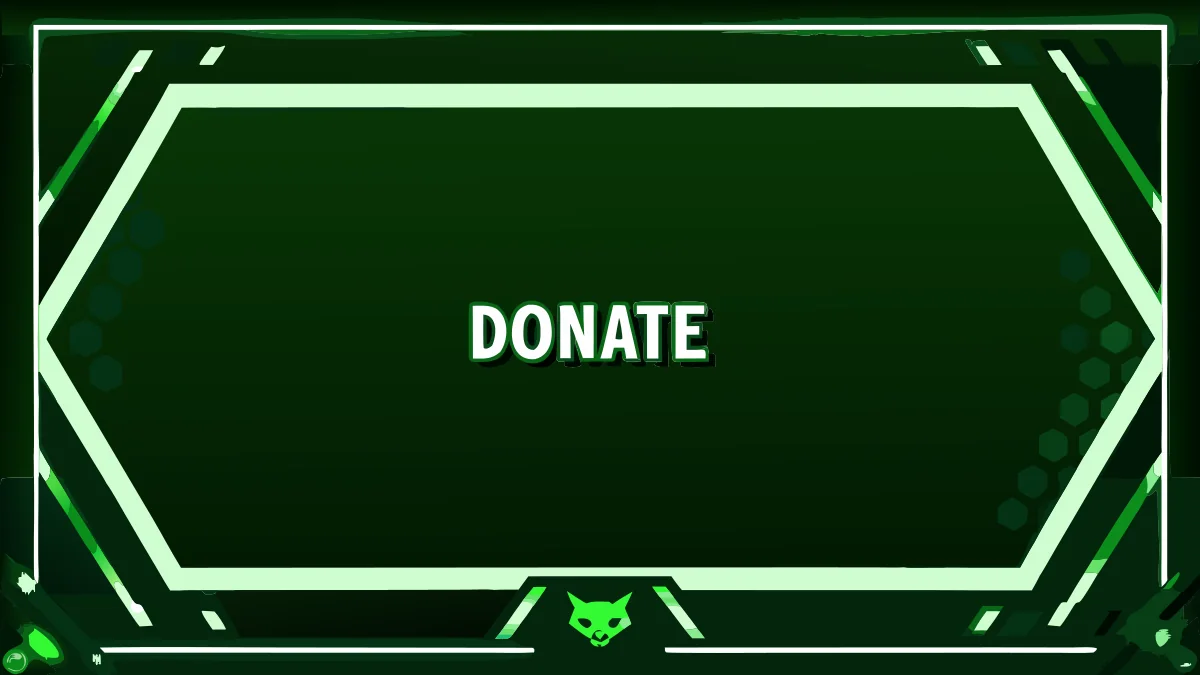
Streamset designs five panels in one style, Discord, Donate, Schedule, Socials and Subscribe, sized at 320×160 so they fit Twitch's panel column perfectly. They're styled from your logo or a reference image, so they match your banner and avatar.


How it works
Pick your panels
Choose 5× Twitch Panels on their own or in the Complete Pack.
Set the style
Attach a reference, or let your logo guide the colours and look.
Export and upload
Download each panel at 320×160 and add them under your stream in Twitch's About section.
- Twitch panel width
- 320px max
- Twitch panel height
- Up to 300px
- Streamset panels
- 5 panels at 320×160
Tips
- One idea per panel
- A short label such as 'Schedule' or 'Discord' reads instantly; put the details in the text under the panel.
- Keep them consistent
- The same colours, frame and lettering across every panel looks deliberate and professional.
- Link them
- Add a link to each panel in Twitch so viewers can click straight through to your Discord or tip page.
Questions
What size are Twitch panels?
Twitch panels are up to 320 pixels wide and up to 300 pixels tall. Streamset panels are 320×160, the most common size.
Which panels are included?
Five panels: Discord, Donate, Schedule, Socials and Subscribe, all in one matching style.
Will the panels match my logo?
Yes. Your logo is used as the style reference unless you attach a different reference image.
How do I add panels to Twitch?
Go to your channel, open About, turn on Edit Panels, click the + and upload an image for each panel. You can add a title, link and description to each one.